
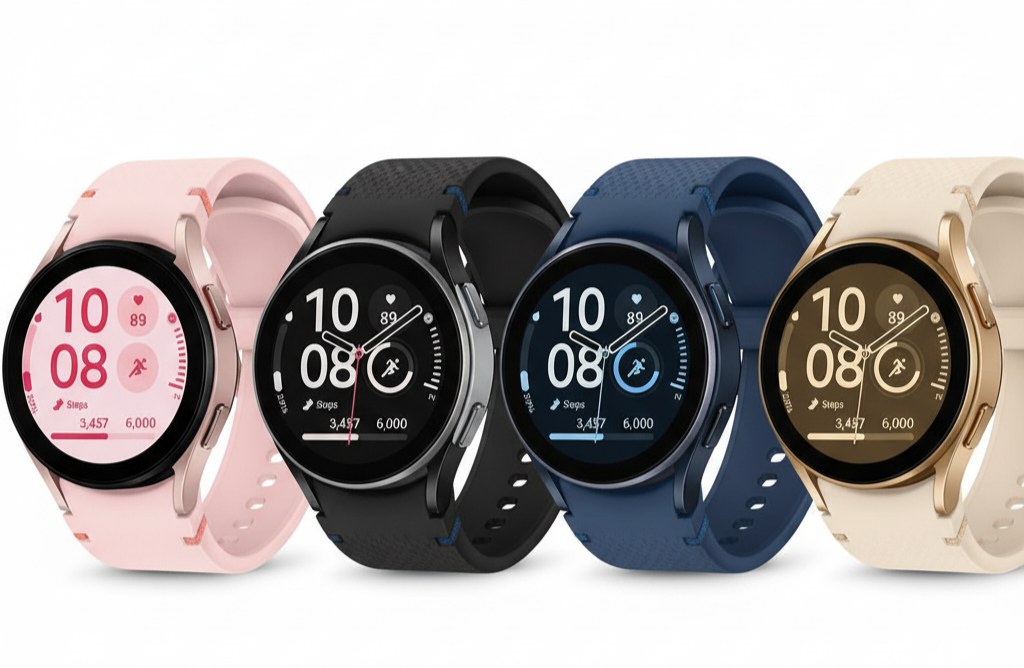
I didn’t think I’d ever need to learn how to reset samsung galaxy watch FE until mine froze during a morning run. The music paused, the watch ignored swipes, and the heart rate monitor stayed stuck on a ghostly green pulse. That’s when I realized: even the most reliable Samsung device occasionally needs a reset. Whether your watch is lagging, refusing to pair, or you’re preparing it for resale, knowing the right way to reset it can save you from endless frustration.
Resetting your Galaxy Watch FE isn’t just a random fix — it’s a full system refresh. It wipes software bugs, clears corrupted cache, and restores performance to that buttery-smooth feel you loved when it was new. But there’s a catch: you must know which type of reset to perform, and how to do it safely without losing important data.
Why Resetting the Galaxy Watch FE Works
A reset isn’t a punishment for your smartwatch — it’s maintenance. Over weeks of use, tiny bits of cached data from apps, Bluetooth connections, and updates pile up in the system. Eventually, this clutter slows performance or triggers strange behavior, like battery drain, screen freezing, or the watch refusing to sync notifications.
The Galaxy Watch FE runs on Samsung’s refined Wear OS build, and while it’s stable, it’s not immune to memory leaks or sync glitches. Performing a reset essentially wipes all that digital dust clean. It’s like clearing out an overstuffed backpack — you don’t throw the backpack away; you just empty it so it can work properly again.
Understanding the Three Reset Levels
When people ask how to reset samsung galaxy watch FE, they usually mean one of three things: a simple restart, a soft reset, or a full factory reset. These terms get tossed around online as if they’re interchangeable, but they’re not.
A restart is like telling your watch to take a deep breath. It shuts down the operating system and reboots it without touching your settings, apps, or data. A soft reset does the same thing but is used when the device becomes unresponsive — you hold down the physical buttons until the system forces a reboot.
A factory reset, though, is the nuclear option. It erases everything — apps, settings, stored music, fitness data, Wi-Fi credentials — and returns your watch to its out-of-the-box state. It’s the version of “starting fresh” that tech professionals recommend before selling a device or when software corruption has gone too deep for quick fixes.
Preparing Before You Reset
Before diving into the process, always back up your data. Samsung gives you several ways to do this. The easiest is through the Galaxy Wearable app on your phone. Launch the app, scroll to “Watch Settings,” tap “Accounts and Backup,” and choose “Back Up Data.” This step ensures your custom watch faces, health stats, and app preferences survive the reset.
You should also make sure your Galaxy Watch FE is charged to at least 50 percent before starting. Nothing feels worse than your device dying halfway through a factory reset — it’s like pulling the power cord while installing a software update. That interruption can cause serious software corruption, which is exactly what you’re trying to fix.
Step-by-Step: How to Reset Samsung Galaxy Watch FE
Now to the part you came for — how to reset samsung galaxy watch fe safely and completely. There are two main methods: resetting directly from the watch or using the Galaxy Wearable app on your paired phone.
If your watch still responds to touch, swipe up on the home screen to access the app drawer. Open “Settings,” scroll to “General,” and then tap “Reset.” You’ll see a prompt asking if you’re sure you want to erase everything. Confirm, and the reset begins. It takes a few minutes, during which the watch will reboot and show a progress screen.
If the watch isn’t responding or you’ve forgotten your PIN, there’s another path — Recovery Mode. Power off your watch completely. Then, press and hold both the Home and Back buttons simultaneously until the Samsung logo appears. When it does, release both buttons and quickly press the Home button repeatedly until you see a hidden menu labeled “Reboot Mode.” Navigate to “Recovery,” press and hold the Home button to select it, and confirm the reset. It feels a bit like unlocking a secret level, but it’s built in precisely for situations like this.
Once the reset finishes, the Galaxy Watch FE will reboot to the welcome screen, ready to be paired as new.
Using the Galaxy Wearable App
Sometimes the easiest route is through your phone. Open the Galaxy Wearable app, select your connected Galaxy Watch FE, go to “Watch Settings,” then “General,” and tap “Reset.” This method is ideal when you’re prepping to sell or give away your watch because it automatically unpairs the device and erases your personal data at the same time.
After the reset, you can restore your backup through the same app, bringing back your preferred watch faces, Samsung Health sync, and saved settings without manually setting up everything again.
When a Reset Solves Persistent Bugs
It’s surprising how often a simple reset fixes serious-looking issues. Lag during workout tracking, random Bluetooth disconnections, and apps failing to load often trace back to small memory conflicts that vanish after a reset. Even the rare software loops that cause the battery to drain rapidly can vanish once the device reinitializes.
Many users try updating firmware or clearing caches before resetting — which is good practice — but once you notice recurring slowdowns or crashes even after updates, it’s a sign that system-level files are misbehaving. A factory reset wipes those stubborn files and rebuilds everything clean.
What Happens After Reset
Once the watch restarts, you’ll be greeted by the same pairing screen you saw when you first unboxed it. Reconnect it to your phone, sign into your Samsung account, and choose “Restore from Backup” if you created one. The restoration process re-downloads your previous configurations, apps, and health data.
You’ll probably notice the watch feels snappier, menus open faster, and the Bluetooth connection stays steady. It’s because all the lingering data clutter and misbehaving background services are gone. A reset gives the processor and memory a clean slate to work with.
When a Reset Doesn’t Fix Everything
There’s a small chance that even after a full reset, issues persist. If your watch still freezes, fails to charge, or randomly restarts, the problem might not be software — it could be hardware. Battery wear, moisture exposure, or a failing sensor can mimic software issues. In such cases, resetting won’t help, and it’s best to contact Samsung Support for diagnostics.
You can still try re-pairing it with a different phone to confirm whether the glitch lies in the watch or your original phone’s Bluetooth stack. If it works fine with another device, the issue might be your phone’s connection cache, not the watch.
Avoiding Frequent Resets
Resetting is effective, but it shouldn’t become routine. If you find yourself resetting every few weeks, that’s a red flag. Check for third-party apps causing slowdowns or unexpected reboots. Some non-optimized apps built for older versions of Wear OS may conflict with Samsung’s latest software updates.
Keep your firmware current — Samsung regularly pushes updates that improve stability and performance. Also, regularly restart your watch every few days to keep memory fresh. Think of it as preventive maintenance instead of crisis recovery.
My Experience Resetting the Galaxy Watch FE
When I first performed a reset, I hesitated because I didn’t want to lose my fitness data. I backed it up using the Galaxy Wearable app, hit “Reset,” and watched the process unfold. Within ten minutes, my watch was reborn. The lag I’d been tolerating for weeks disappeared. Notifications synced instantly again, and battery life actually improved by nearly 15 percent.
The reset also cleared out a recurring issue where the touchscreen wouldn’t register swipes after workouts. That problem never returned. It reminded me that sometimes we overcomplicate things — a simple reset can be the cure you overlook while chasing every other fix.
Important Things to Remember
After you reset, don’t skip re-signing into your Samsung account. It’s not just for backup restoration — it also removes the device from the old pairing authorization, so your new setup goes smoothly. If you’re giving away or selling your watch, make sure you’ve removed your account before performing the reset. Otherwise, the new owner won’t be able to activate it due to Samsung’s account lock feature.
Give the watch time after restoration to re-index and sync everything. The first few hours might drain more battery than usual because it’s rebuilding databases and resyncing with Samsung Health. Once that’s done, performance stabilizes.
Resetting Isn’t Losing — It’s Refreshing
Most people hesitate to reset because they fear losing data, but once you’ve backed up, it’s not really loss — its renewal. Every smartwatch eventually benefits from a clean slate. The Galaxy Watch FE, with its compact design and strong performance, only gets better when the software runs lean and stable.
After learning how to reset samsung galaxy watch FE properly, you’ll stop treating resets as a last resort and start seeing them as part of good tech hygiene. Every few months, especially after major software updates, a reset keeps things sharp.
Final Thoughts
If your Galaxy Watch FE lags, refuses to sync, or just doesn’t feel as smooth as it used to, don’t panic — reset it. Once you know how to reset samsung galaxy watch fe, you’ll see it’s a simple, powerful fix that restores your watch to peak condition. Whether you’re troubleshooting or preparing for resale, the process is safe, fast, and reliable. Treat it like a fresh start for one of Samsung’s most refined wearables — a few minutes of effort for months of smoother performance.